Starting from Q4/2026, the 2-factor authentication implemented into Nord Pool's authentication platform will change.
The new solution is primarily based on Time-based One-Time Passwords (TOTP) that can be managed with any generic Authenticator application, like Microsoft Authenticator or Google Authenticator. Also the Authy app can be used.
Migrating to the new 2FA solution
Each user will be prompted to migrate to the new 2FA authentication mechanism. After each successful login with the old method, a dialog is displayed. It is possible to postpone the action until 2027-03-01 and continue using the previous 2FA mechanism. However, the dialog will be displayed after each login until the upgrade has been successfully done by the user.
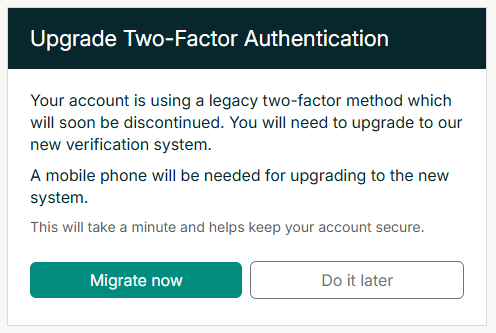
It is heavily recommended that the most secure supported 2FA method, an authenticator application (utilizing the TOTPs), is selected. SMS-based one-time password delivery is also available as an option for those who are not able to utilize authenticators for example due to company policies.
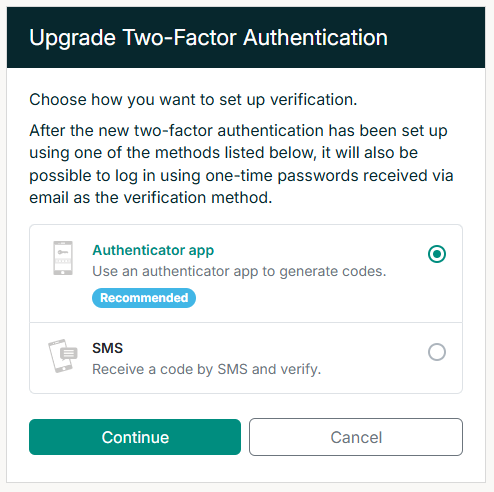
If there is no mobile number configured for the user account, an Authenticator app is the only available upgrade method.
Connecting the authenticator application to your account
Follow the instructions on the screen.
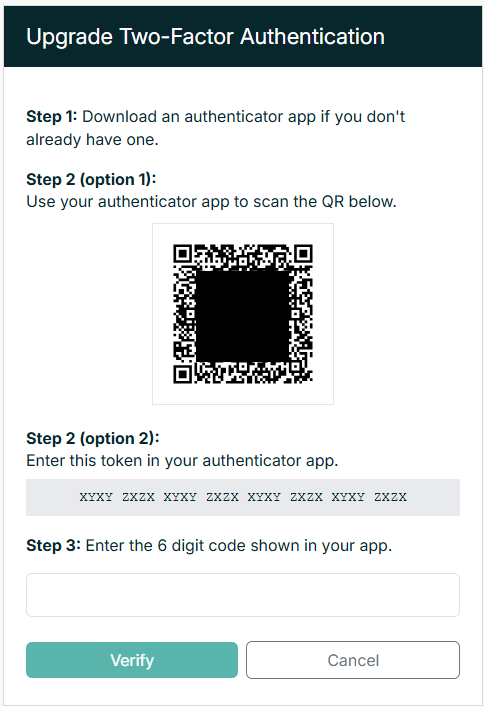
Step 1 - install an authenticator app
If you don't have any suitable authenticator applications installed on your mobile phone, consider installing for example one of the following:
| Application | Android | IOS |
| Google Authenticator | Google Play Store | App Store |
| Microsoft Authenticator | Google Play Store | App Store |
| Twilio Authy Authenticator | Google Play Store | App Store |
Open the authenticator application.
Step 2 - link your Nord Pool account
Link the selected authenticator application to your Nord Pool user account. Initiate the linking by tapping the "Add account/add code" button on your app, and link the account either by scanning the QR code displayed on the screen or by typing or copy-pasting the displayed 32 digit token to the authenticator application.
Step 3 - verify the linking
After completing Step 2, you now see a 6 digit code (the TOTP code) on your authenticator application. (please notice - the code is refreshed every 30 seconds).
Type the code into the text field on the browser and click "Verify".
Alternative method - SMS
For users that are not able to utilize an authenticator application, it's possible to authenticate using one-time passwords delivered with SMS-messages.
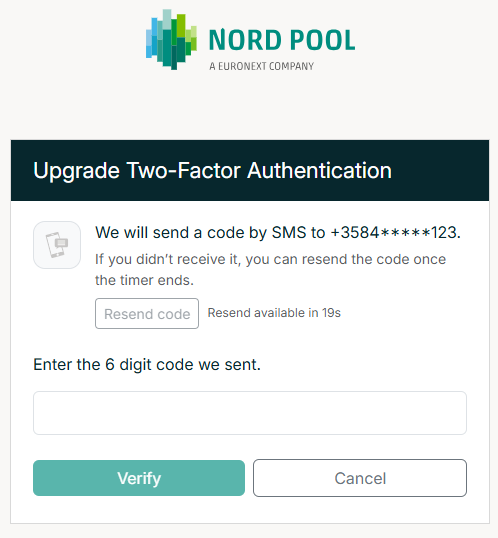
If you chose SMS as the verification method, please insert the 6 digit code you received to the text box in this dialogue:
Migration complete
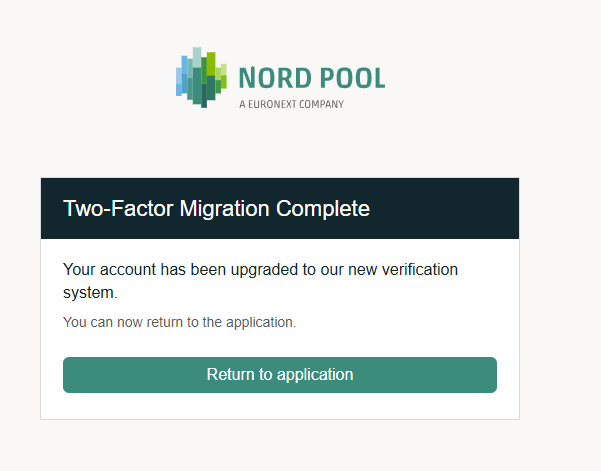
You have completed the migration to the new 2FA-solution.